Any tricks to getting a Windows 11 HP Envy Laptop to stay awake?

My HP Envy Laptop falls asleep. Obviously it needs to stay running for Yardstick (and Home Assistant at some point).

Windows Power Settings tell it to stay awake, both the “new” System Settings and old Control Panel.

Yardstick’s Keep Computer Awake setting is ON.

I just enabled “Allow Wake Timers - Plugged In” in Windows Advanced Power Settings, but that’s a stab in the dark. Maybe Yardstick sets such a timer and now it’ll work?

Gemini has some additional suggestions a bit deeper on the machine, but I thought I’d toss this out there for ideas from the crowd first.

Ken

Hi Ken, you’ve already done the things that fix this for most people, so let me point at the two that specifically trip up a newer laptop like the Envy.

Yardstick’s “Keep Computer Awake” is working, but it helps to know what it can and can’t do. It tells Windows “don’t idle-sleep while I’m running,” and that holds against the normal sleep timer. What it can’t override are two things Windows handles at a lower level:

1. Closing the lid. If it sleeps when the lid is shut, no app setting and no “never sleep” timer will stop it, the lid action is separate. Set it here: Control Panel > Hardware and Sound > Power Options > “Choose what closing the lid does,” and set When I close the lid: Plugged in to Do nothing. (Leaving it as Sleep on battery is fine.) This is the single most common cause.

2. Modern Standby. Most new HP laptops, the Envy included, use “Modern Standby” (S0) instead of the old sleep. On those, the machine can still slip into a low-power standby even with the timers set to Never, and it’s far more aggressive on battery than plugged in. Two things help:

  • Keep it plugged in. Modern Standby on battery will sleep almost regardless of settings.
  • Check which mode you have: press Start, type cmd, open Command Prompt, and run powercfg /a. If you see “Standby (S0 Low Power Idle)” listed at the top, that’s the mode you’re on.

One more hidden setting worth flipping is the System unattended sleep timeout. After any wake, Windows can re-sleep in 2 minutes no matter what your other settings say, and it’s hidden from the normal screens. Easiest fix, in that same Command Prompt:

powercfg /setacvalueindex scheme_current sub_sleep UNATTENDSLEEP 0
powercfg /setactive scheme_current

That sets it to never while plugged in.

About the wake-timer setting you turned on: that one controls whether things are allowed to wake the machine, not whether it stays awake, and Yardstick doesn’t use a wake timer to stay up (it holds an active keep-awake request the whole time it’s running). So it won’t be what’s keeping it asleep, leave it however you like.

If you want to see exactly what’s going on, two commands tell the story:

  • powercfg /requests — while Yardstick is running you should see it listed under SYSTEM. That confirms the keep-awake is active.
  • powercfg /lastwake, plus the System log in Event Viewer filtered for “Kernel-Power,” will tell you what actually put it to sleep.

Hope this helps - others will probably have other ideas as well.
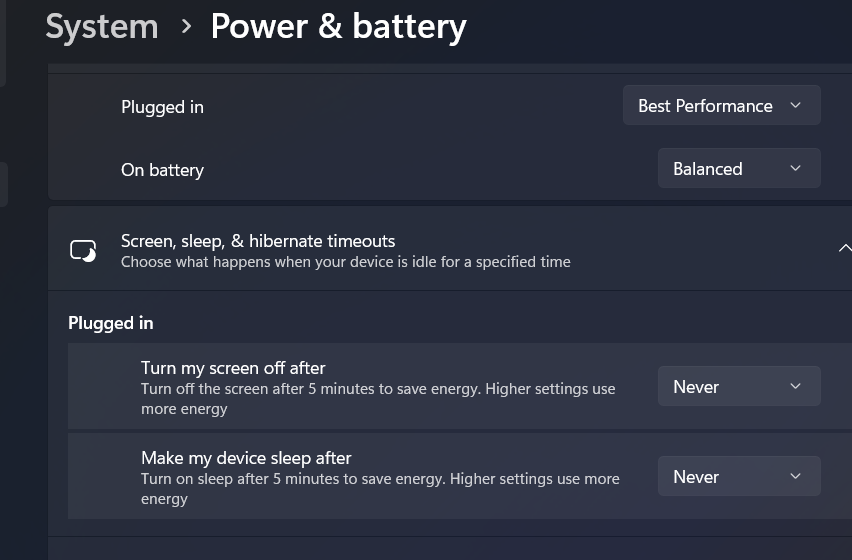
These are ones you changed correct?

Quick response, Mike - wow!

Laptop is plugged in and open pretty much 24/7. Power down is “Never” (which CobraDunn asked about).

Spot on, powercfg /a is “Standby (S0 Lower Power Idle)”. Does anything need to be changed with that, or is that just informational for what we’re doing?

C:\Windows\System32>powercfg /a
The following sleep states are available on this system:
Standby (S0 Low Power Idle) Network Connected
Hibernate
Fast Startup

I ran the UNATTENDSLEEP commands, let’s see how that goes.

Yep, Yardstick is in the powercfg /requests list. Nothing else is. The /lastwake is Wake History Count - 0. The event log has Kernel-Power, but it’s just manual shutdown that I could find. Can’t really search too well in that thing! GRRR…

Good data, Ken, that narrows it down a lot.

First, your direct question: no, you don’t need to (and really can’t) change the S0 state itself. “Standby (S0 Low Power Idle)” is just the only kind of sleep this hardware offers; the old-style S3 sleep isn’t there to switch to. So the goal was never to change S0, it’s to keep the machine from dropping into it, which is what we’re doing.

And it’s set up right: Yardstick being the only thing in powercfg /requests means the keep-awake is active and doing its job, and lastwake at 0 with no real sleep events in the log is a genuine clue. It may not be truly sleeping the way it looks.

Two things will tell us what’s actually going on:

1. The right tool for an S0 machine (Event Viewer is close to useless here). In that same Command Prompt:

powercfg /sleepstudy

It writes a file called sleepstudy-report.html in whatever folder you’re sitting in. Open it in your browser, it lists every low-power session, how long each one lasted, and what let it drop in. That’s the report that actually explains a Modern Standby machine.

2. A quick test. On these machines the trigger for the low-power state is the screen turning off, and Yardstick deliberately keeps the system awake while letting the screen sleep. Set the screen to never turn off while plugged in (Settings > System > Power & battery > Screen and sleep > When plugged in, turn off my screen after: Never) and see if the symptom stops. If it does, that points right at the cause.

One question settles it: when you say it falls asleep, what do you actually see, a dark screen that comes right back the instant you touch a key, or is Yardstick genuinely stopping and then showing a gap in its recording afterward? If it’s still happening, say the word and I’ll look from our side at whether your recording has any real gaps and when, which would tell us straight away whether this is an actual stop or just a dark screen.

Are the network cards going to sleep separately from the OS?

1 Like

Also depending on your power usage and electrical rates it might pay to get another lower power PC to run HA and yardstick on. We have pretty expensive electricity here and my RPi5 paid for itself in 3 years compared to my prior laptop I was using.

1 Like

While a Pi isn’t as cheap as they used to be, it was exactly a good solution for me to run Yardstick. Definitely recommend that if you don’t mind throwing some money at the problem.

1 Like

Once Gemini teaches you SSH you’ll wonder why you didn’t switch to a headless Linux box way sooner. I’m thinking about switching OSs on my laptop since the windows 10 security updates are ending

2 Likes

Mike, the sleepstudy does show the laptop going to sleep – the power button light does turn off. I do not believe Yardstick is failing, it’s the machine. If there is anything useful I should try to find in the sleepstudy HTML, just let me know. Anyway, the sleepstudy report shows Screen Off, then Sleep a few seconds later, which I think is expected. It doesn’t point its finger at anything telling it to sleep, but maybe I don’t know how to read that in the report.

I’ll try the setting to leave the screens on to see if that helps.

For Bryan and rcguymike, yeah, was pondering getting a pi or micro-PC, but I’d rather not chuck dosh at this problem right now. I have some ancient PCs that I could bring back to life, but I’m sure they consume more juice than my laptop, so if I could use the laptop, I’d prefer that.

2 Likes

I left the screens ON (turn off NEVER), and this morning the laptop was wide awake, and Yardstick came right up in the browser.

Yeah, I dunno why this thing is fighting, although Gemini has pondered some deeper things for the HP Envy laptops such as rolling back some firmware and disabling some hardware wake-ups or something like that, but it would be good if I didn’t have to go that far.

Hey, it’s an HP, and I used to work for 'em, and maybe it’s revenge.

HOPEFULLY I can manually power off my two external monitors and have the thing stay running, maybe close the lid a little 'til the laptop monitor powers off, and maybe that’ll do.

Not right now, though. I’m going to perform the Mowing Operation Initiation Slipper Test (MOIST) and run a mow if I can before rain sets in.

I appreciate the hints/help, folks.

2 Likes

Workaround for the we-don’t-know-why-it-insists-on-sleeping HP Envy Laptop:

  • In the power / power plan settings, set Put the computer to sleep AND Turn off the display to Never.

Side effect: Your monitors stay powered on. My experiment to turn off the monitors manually and close the lid just a bit 'til the laptop display turned off worked – the laptop didn’t sleep, and everything continued as normal when I opened the lid back up and powered on the monitors. Good enough.

Going old school, a dark screensaver could help.

@CobraDunn - Yah, did the Black screen / Blank one, but it leaves the monitors on.

1 Like

Just a thought, some of the OEMs have a their own control panel apps. Did you look to see it HP included anything like that and buried a setting in it?

Nothing I could find in their included utilities, and I didn’t see any special control panel, but who knows what HP does to the OS. Gemini did dig up some other things to try (as mentioned earlier), but they’re a little bit heavier of a hammer, and that I have something working for now, I’m good…well, until I’m not. :slight_smile:

1 Like