I initially installed Yardstick on my MacBook and realized it was challenging to keep it online at all times. So I installed it on a Windows vm that is always on.
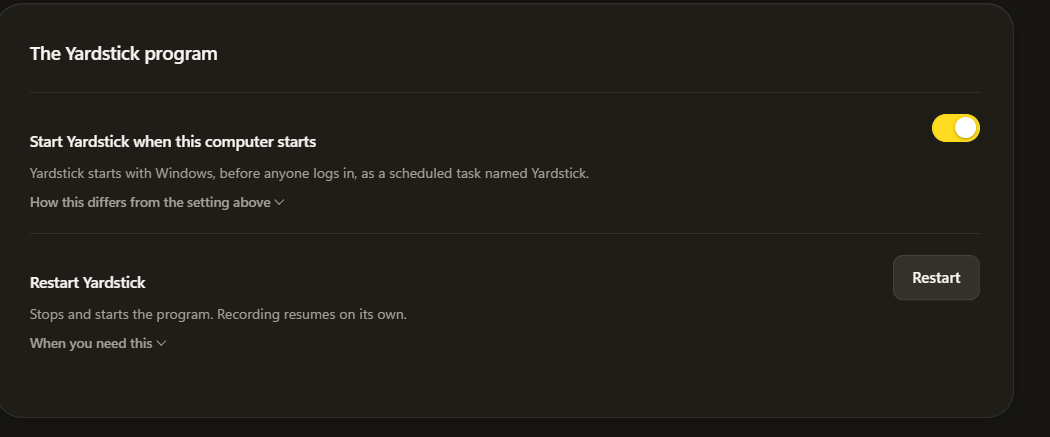
On both platforms I looked for a way to restart the program but did not see one. It would be ideal to have a “Restart” button in settings instead of having to reboot the computer itself just to restart an app or service.
I found a Readme file buried in the Windows vm under \Program Files\Yardstick that had command line uninstall instructions for MacOS. I have to admit that personally, it was not very easy to find the doc and run in Terminal. Since Yardstick does not show up as an application, it cannot be uninstalled like any other Mac app.
Other than that I am thrilled to be able to fine-tune my maps with a mouse on a large monitor. Outstanding job!
@Frederic We do have a full support site at Yardstick Support - we are adding new items all the time. That is our intended place for help, we have the Readme just to be nostalgic for 1989. Glad you found it so you didn’t get stuck. Give the Support site a shot, I think you will find that is much easier.
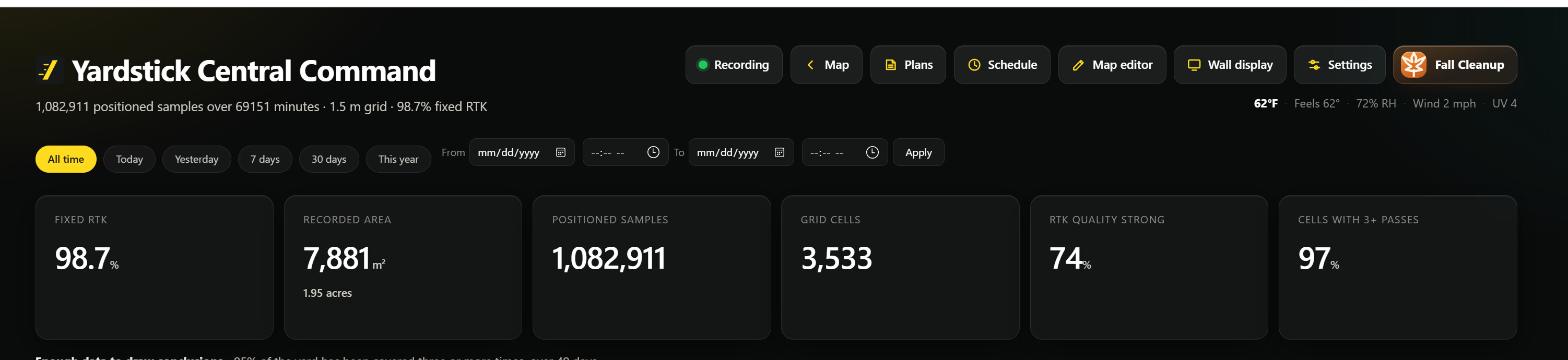
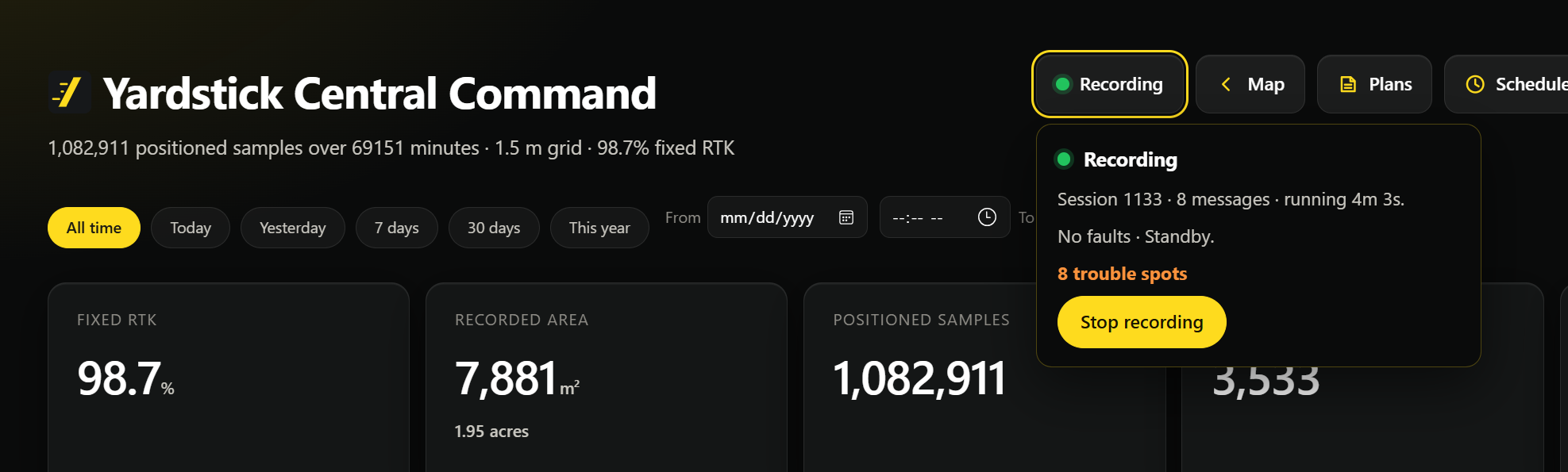
@Mike as you think through assignment of functions to Setting sub-screens consider moving the “Stop Recording” from the Central Command screen to the Recording screen in Settings.
Unless I’m missing something, most users will want Recording on all the time especially with the Tidy Up settings addressing retention duration. If so, moving it off the Central Command screen moves the Map up and inch or more. NOTE: I’m assuming the Date Range selection would move with the Recording button.
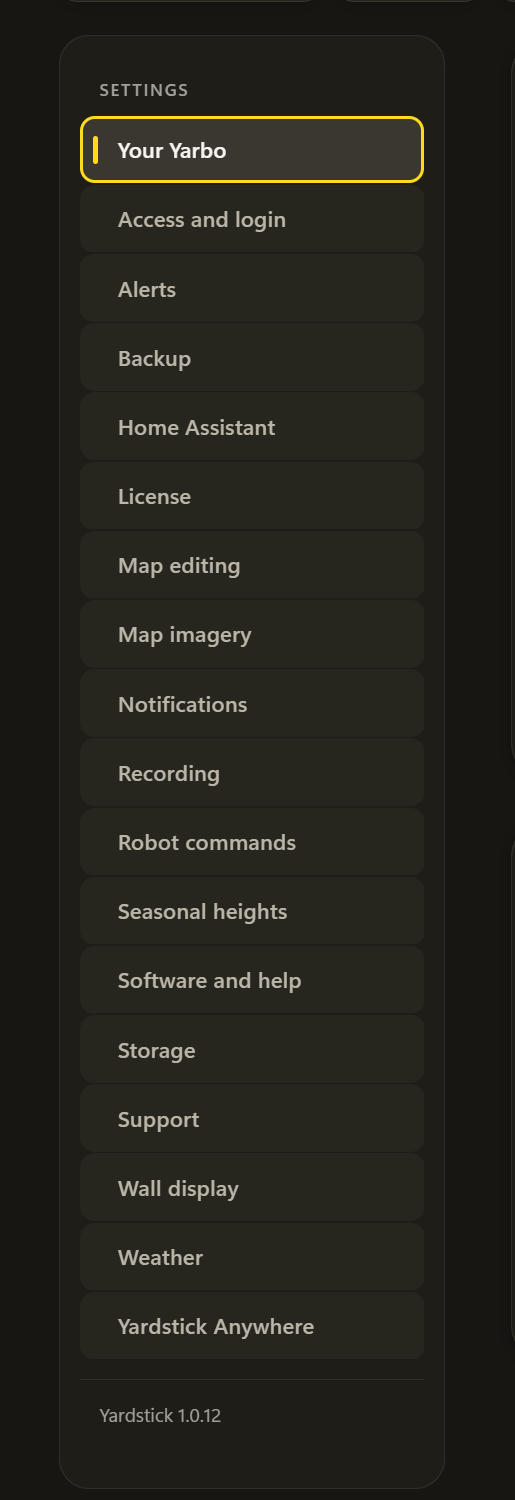
Specific to the Setting screen - consider ordering the list of sub-screens in order of frequency of use. I find I use the Map Editor much more often than Recording or Storage (visited each once). Might be a moment in time thing, but I suspect once people settle in (i.e. refine their maps) they will visit Setting for:
Software & Help
Backup
Season Heights
Map Imagery
Your Yarbo
The rest of the sub-screens are kind of once-n-done visits with the exception of Map Editor which is used intensely then visited infrequently.
On the sort of the settings Menu, you are right. That is getting to be a shuffled-up mess. We already know that certain features have different uses and are at the top of individuals’ lists, so it’s hard to try to sort out what the order should be based on utilization. So, we have landed on:
@Frederic one more for keeping Yardstick online, now that 1.0.19 is out. On Windows, Yardstick now restarts itself if it ever stops. A small watchdog checks every five minutes and starts it again, so a crash overnight no longer leaves your schedule idle. It leaves it off if you’ve turned off starting automatically.
Update from Settings, Check for updates if it hasn’t come through yet.