Need help getting Lawn Striping to work

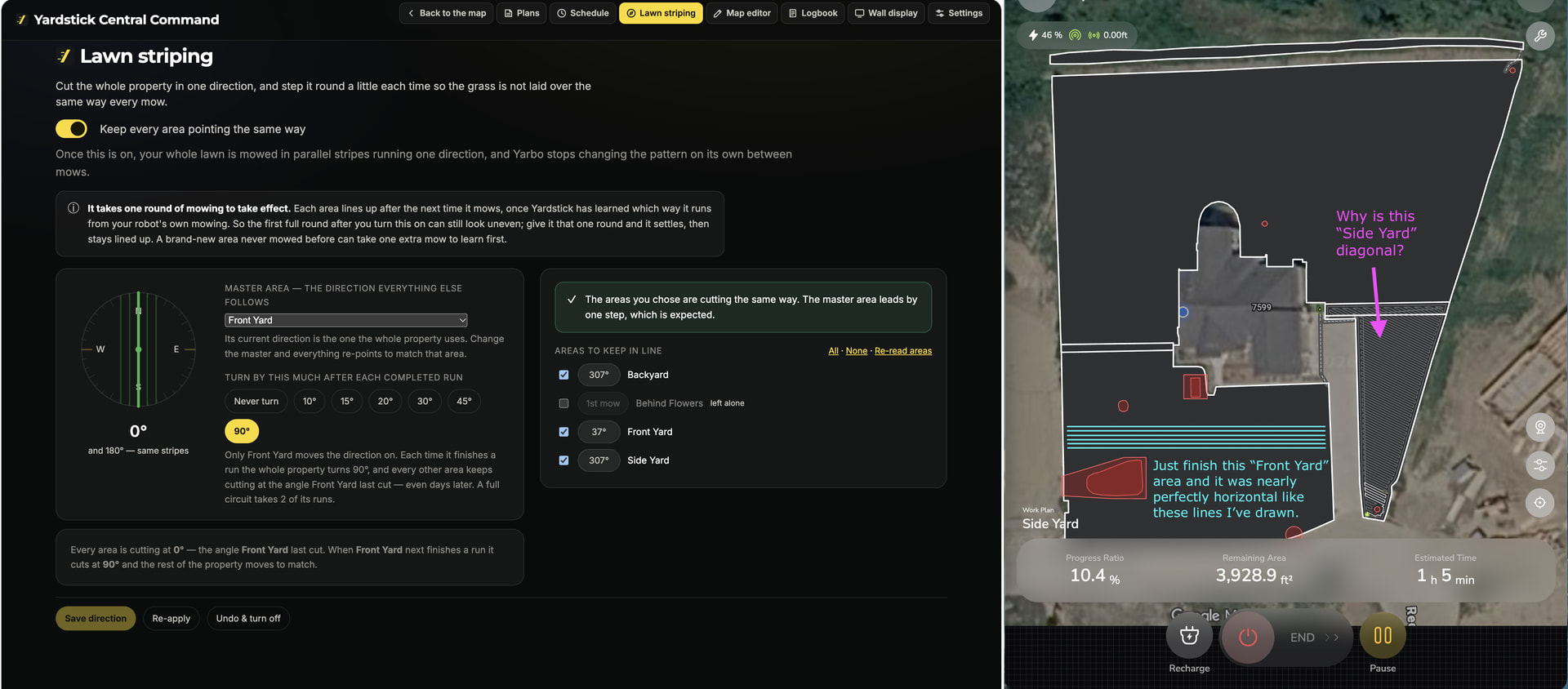
@Mike try as I might I cannot get Lawn Striping to work. This morning I “Re-apply” and [Save]. I immediately mowed the Master Area (i.e. Front Yard) which mower perfectly horizontally. NOTE: The compassed changed 90° vertical when Front Yard was complete.

Next Yarbo started Side Yard and is mowing at an angle not parallel to Front Yard. No matter how hard I try, they will not align. NOTE: I have mowed multiple times after making setting changes and still can’t get them aligned.

Below is a picture from this morning. What am I doing wrong?

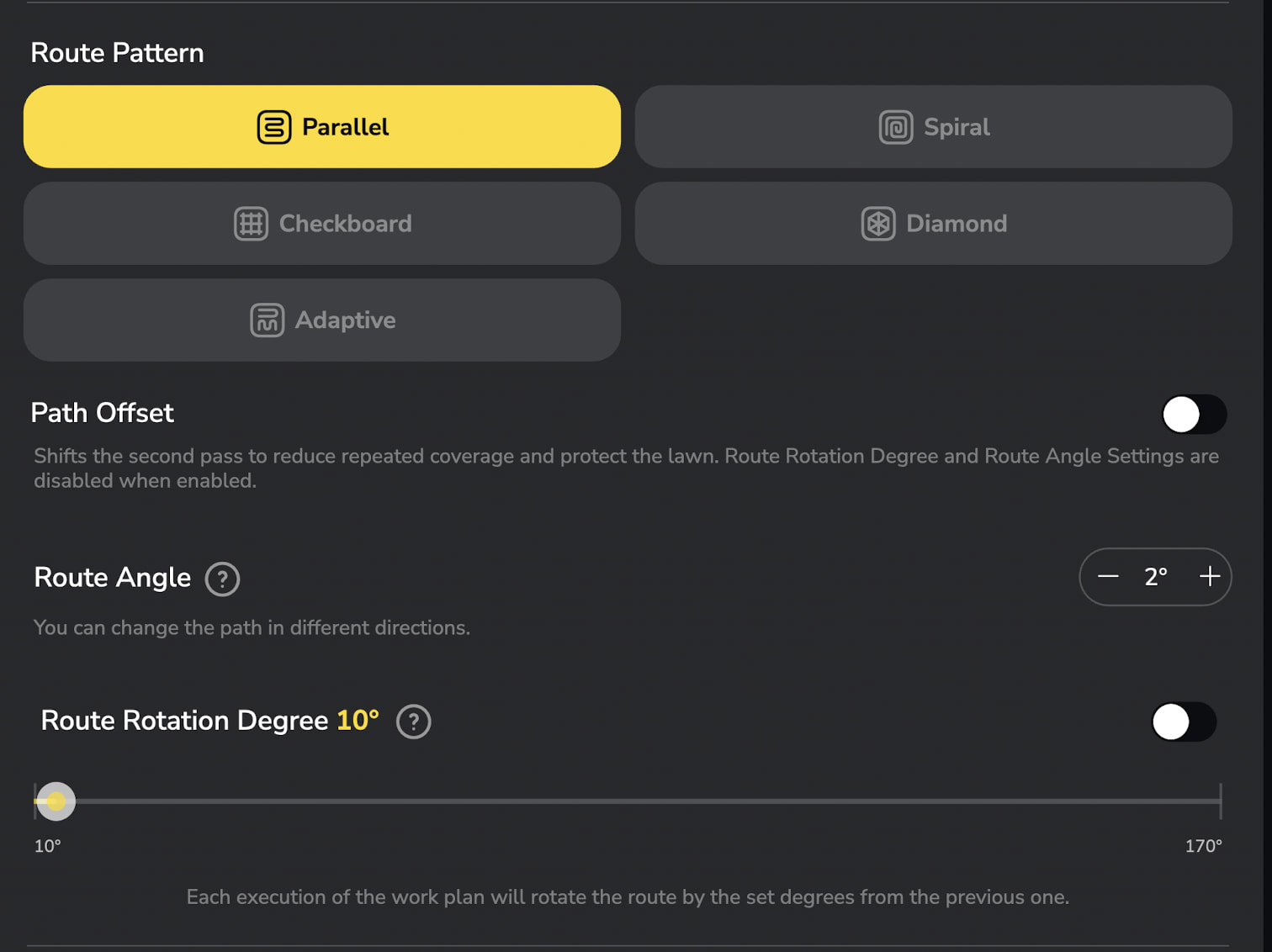
Double check you have Path Offset DISABLED for the all the areas you want to align. I was having similar issues with this on.

1 Like

Good question, and your screenshot actually shows it’s in sync. The numbers just read differently than you’d expect.

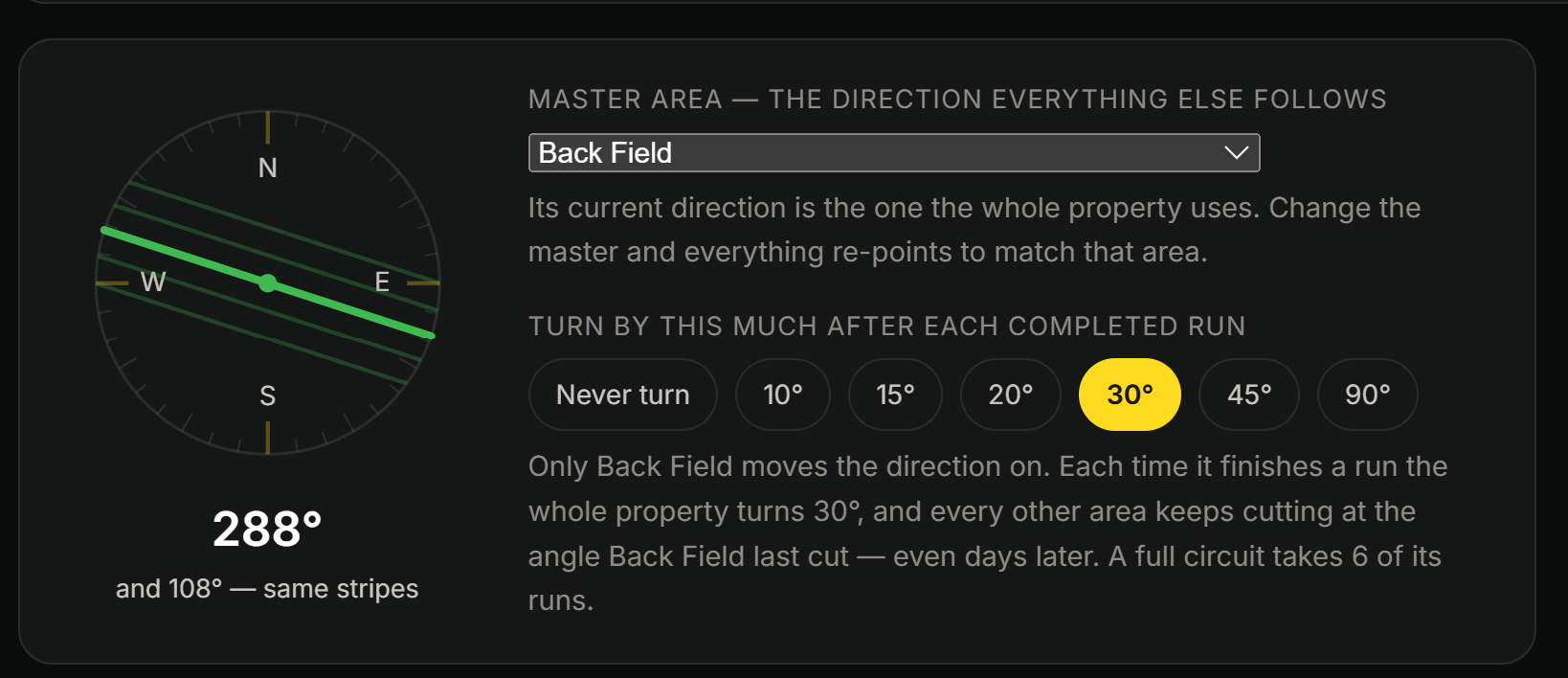
What the compass dial means. The dial only sets where your master area (Front Yard) starts. From then on, every time Front Yard finishes a run, the direction moves on by your step, which is 90° on your card. So the master always shows the angle it will cut next, one step ahead of everything else.

That’s why Front Yard shows 37° and Backyard and Side Yard show 307°: they’re exactly 90° apart. The card says the same thing: “The areas you chose are cutting the same way. The master area leads by one step, which is expected.”

Before every mow you start from Yardstick, every other area is pointed at the angle Front Yard last cut. So with a 90° step, each time Front Yard finishes, the whole property turns 90° from then on. Over time that gives you a crosshatch, not one direction.

If you want to start over at exactly 0°, set the dial to 0°, press Save direction, then click Re-read areas so every area is recalculated from there.

If you want every stripe parallel, every time, choose Never turn, press Save direction, then Re-apply.

About Side Yard. If Front Yard and Side Yard ran in the same job this morning, Side Yard should have cut parallel to Front Yard. Two things to check:

  1. Make sure the job was started from Yardstick (Plans page or a Scheduler program), not the Yarbo app. A job started from the Yarbo app goes out at whatever angle the robot already has.
  2. As @CobraDunn mentioned, make sure Path Offset is turned off in the Yarbo app for every area you want lined up. He saw the same thing with it on. Its a good suggestion, but we have not confirmed this is required.

If Side Yard is still off after that, send diagnostics from Settings > Support and post the reference here, and we’ll take a look.
Thank you @CobraDunn and @Mike

I did have Transit Path Offset turned ON for all my Areas. I just turned it off.

I did start the mowing from the Schedule page by clicking on the [Run now] button associated with a Schedule that includes only the Front Yard and Side Yard (in that order).

I will follow the instructions “If you want to start over at exactly 0°” listed above and test everything in a couple days.

Again, thank you

I believe it was Path Offset (the one under Route Pattern) that seemed to be the issue for me.

Thanks for the update, and for testing it.

One quick follow-up on Transit Path Offset: we’ve checked it on a couple of installations, including our own, and it has no effect on striping. Leaving it on or off is entirely up to you, so you don’t need to change it for Lawn striping.

Starting from Run now on the Schedule page is exactly right. Let us know how it looks after a couple of mows.

I have Route Pattern set to Checkerboard and the Route Angle is 52°.

What are the appropriate Route Pattern setting and/or the Route Angle setting so YS can handle Lawn Striping?

If you want things to align, Yardstick will handle those settings for you. Changing to Checkboard will definitely break the alignment.

So I should set Route Pattern = Parallel and turn off Path Offset?

Should I turn off Route Rotation Degree?

NOTE: I’m unable to make Route Angle equal 0° for some reason.

Turn off Path Offest and Yardstick will manage everything else. It will end up Parallel and do the math for the correct angle.

1 Like

This where you set the compass direction you want everything to follow. You can rotate that compass needle.

If your’re looking for everything to get cut Checkboard, set the TURN BY THIS MUCH to 90 degrees

1 Like