How do you disable autofill on the settings menu. With anything in “Search Settings”, the menu disappears as soon as you click something. Every time the page refreshes, it fills again & must be cleared to use the menu. How about turning off the auto search, so you have to press something to search.
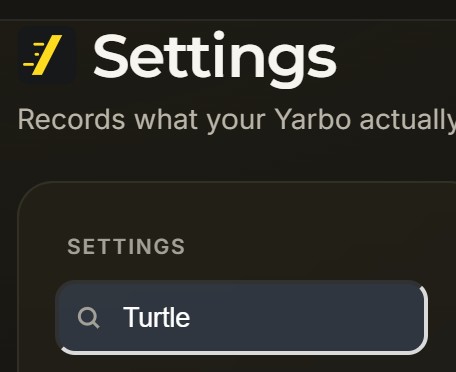
Thanks for the screenshot, it made this easy to track down.
The “Turtle” in the search box isn’t coming from Yardstick. It’s your browser’s autofill. Your browser has saved a login (most likely your Yarbo sign-in from the Map editor), and when it sees a password box on the Settings page, it fills the username into the nearest text box above it, which happens to be the search box. We don’t control autofill, and browsers ignore the usual “please don’t fill this box” setting when it comes to saved logins. Once the box has text in it, the search runs and the menu is replaced by the results, which is why it disappears.
We’ve changed the search box so browsers can’t fill it: it only accepts text once you click or tab into it. That’s in the next update, and searching still works as you type.
Until then, a couple of ways around it:
- Click the box and clear it (the X at the right of the box, or Esc), and the menu comes back.
- Or stop the browser filling Yardstick: in your browser’s saved passwords, remove the saved login for your Yardstick address (you can still sign in to the Map editor by typing it).
I’ll post here when the update is out.
2 Likes
Thanks, much appreciated.
Brett