Yardstick 1.2.30 is here: a settings grid for your whole map, the emergency stop on every screen, and much more. Open Settings and press Check for updates, or if you are new, download it fresh for Windows, Mac or Linux, including the Raspberry Pi.
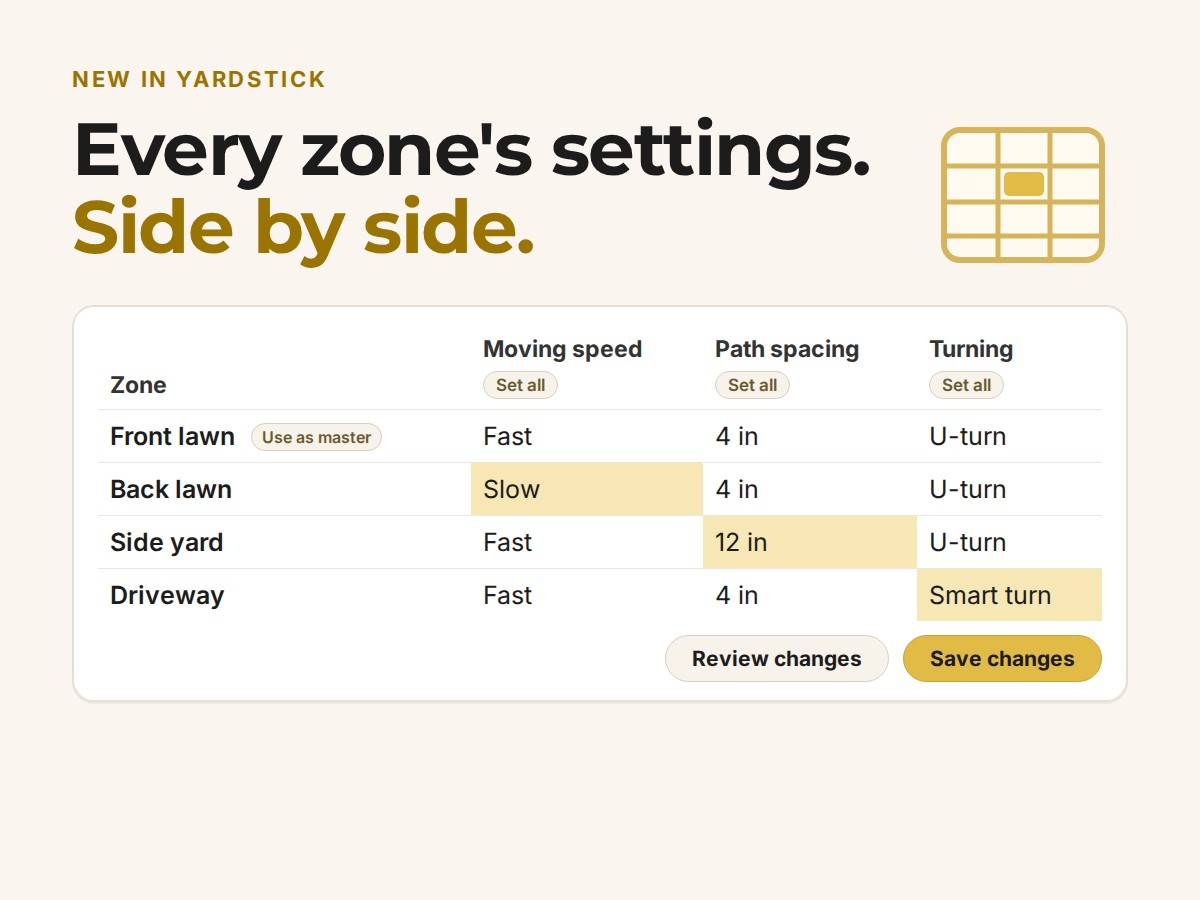
A settings grid in the map editor. See every work area, pathway, sidewalk, dead end, no-go zone or vision zone with its settings side by side, like a spreadsheet: one row for each shape and one column for each setting. Choose the type and the module at the top, and a setting your shapes do not all share is marked, so differences stand out. Click a cell to change one shape, use Set all under a column heading to give every shape the same value, or press Use as master on a row to copy its settings to the others. Review changes lists everything first, and nothing goes to Yarbo until you press Save changes, which takes a backup first. Open it with Settings grid on the map editor’s toolbar. How it works: the settings grid guide.
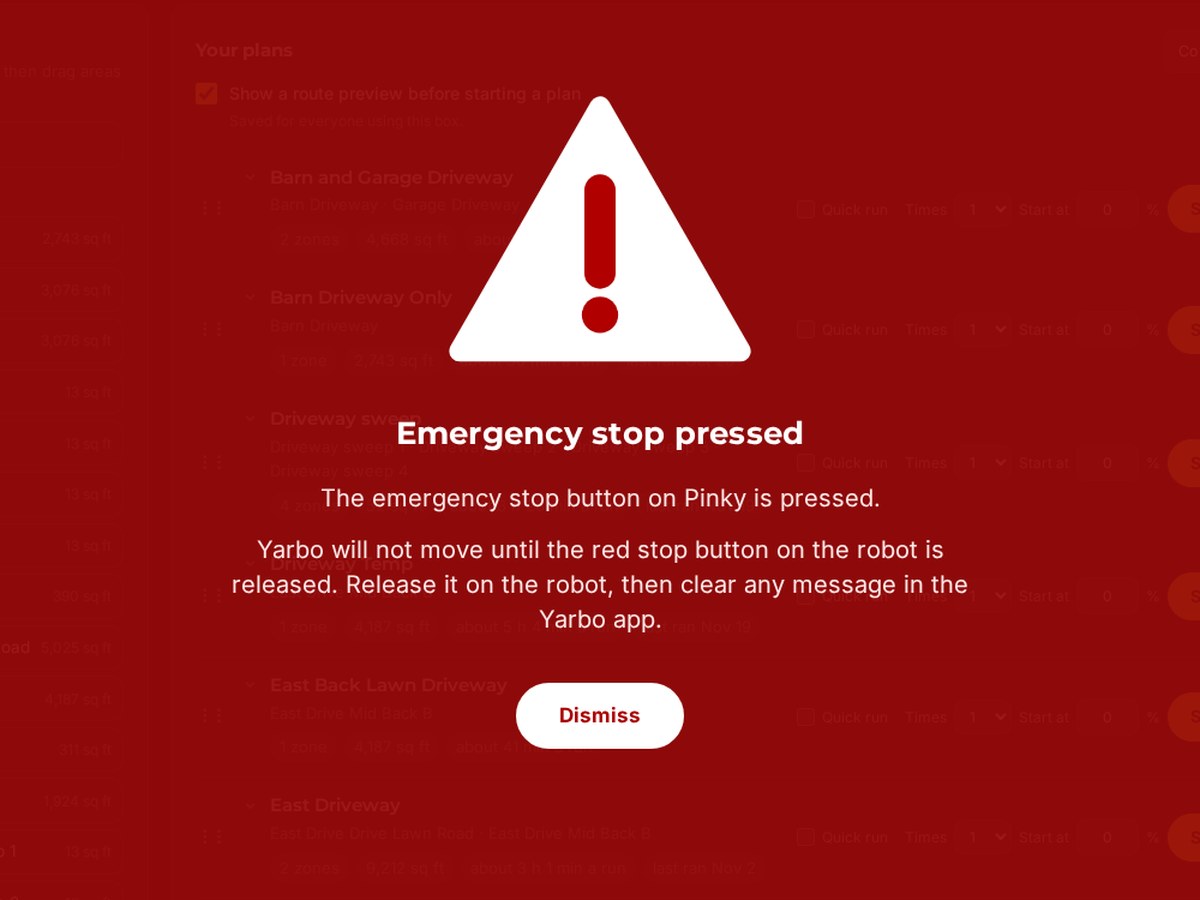
The emergency stop on every screen. When the red emergency stop button on your Yarbo is pressed, every Yardstick page turns red with a big warning triangle and says which robot it is. The wall display shows it too. Press Dismiss to carry on; a red strip stays across the top of every page until the button is released, and clicking it shows the warning again.
New in this release:
- Change a zone’s settings while Yarbo’s job is paused. As in the Yarbo app, you can change a zone’s settings, such as cutting height or contact level, while a job is paused, not only when Yarbo is on its dock. In the Map editor, pick the zone in the list and press Settings.
- See which module each robot has on. The recording light, now in the top bar of every page, names the module attached to each Yarbo with its icon: Snow blower, Lawn mower, Mower Pro, Leaf blower or SAM. With two or more robots, click it to see every robot with its module and its own Stop or Start recording button.
- The snow blower’s slope direction. With the Slope route pattern, open a zone’s settings, choose the Snow Blower tab and Slope, then click or drag toward the zone’s low end. An arrow shows the direction.
- A flame beside the battery while the pack heater warms it, on the map’s Robot now card, the phone page and the wall.
- The wall display shows the plan Yarbo is mowing, and the path driven today. The rows still to mow are drawn in yellow over the part already done, and with Follow the robot the wall zooms in on a plan under way. Turn it off in Settings, under Wall display.
- Yardstick notices when your data center has moved, and fixes it with your OK. If the coverage fills in beside your yard because the data center was moved, Yardstick says so on the map and asks in Settings, under Data center. Nothing changes until you say so, and Undo puts it all back.
- Replacing a core restores your whole map, docking station included. A restore onto a new core now makes it match the backup: anything not in the backup is removed, whatever is missing is added, and the docking station is put back. If Yarbo charges more than a meter from where the old core had the docking station, the preview asks whether you moved it or it is where it always was, and lines the map up to match. The steps are in the replace a core guide.
Improved:
- Throw lines and blowing lines in two clicks. Press + Throw line or + Blowing line, click the border where the line starts, then click where it ends. The line follows the border exactly as the Yarbo app places it. How it works: the throw lines guide.
- Sidewalks, pathways and dead ends show their width in the map editor, as a band 0.6 m (about 2 ft) wide, the same width the Yarbo app draws.
- A restore says how long it can take, and shows that it is working, with a count of the steps done and the time so far.
- Edit areas on the Plans page is now Edit plan, since a plan can hold pathways, sidewalks, dead ends and patrol lines as well as work areas.
- Stop the robot if it leaves the map is under Your Yarbo, with a Save of its own. The alert about a robot leaving its map stays under Alerts.
Fixed:
- Lights after dark no longer go out in dead ends. Yarbo backing out of a dead end was taken for a robot standing still. The lights now stay on in dead ends and on patrol lines.
- Lights after dark now switches off Yarbo’s Auto light by itself, on every robot, and keeps trying until each Yarbo has kept the change.
- Vision detections on the map stayed empty. They now show where Yarbo saw an obstacle and steered around it, the same places the Yarbo app paints red.
- One zone’s settings can no longer be taken for another’s when two programs read the robot at the same moment.
- Saving a map edit could wait a minute for its backup, and the zone settings kept with a backup could miss a zone.
- Split cuts the throw and blowing lines with the zone, so each half keeps the part that lies on it.
- Pressing Esc in the map editor left the zone’s name showing.
- Restoring a backup onto a new core: lines are no longer taken off and put back on every run, a restore that stopped partway can be run again, a Yarbo resting on its dock is no longer refused, and the report no longer lists things that are fine as failures.
- A Weather Underground station that reports no temperature now counts for rain rules.
- How many times a plan runs read as clock times in ten languages. It now says how many times.
- The Windows installer no longer says Yardstick is still running when it is not.
The full list is on the What’s new page.